Azur Lane Tier List Maker
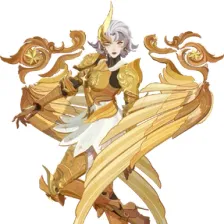
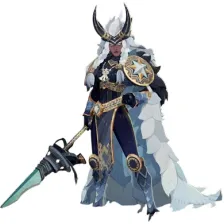
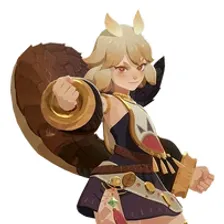
The 79 Ultra Rare, Priority and Decisive ships in Azur Lane, each with its official in-game picture, ready to rank.
Items to rank
79 Admiral Nakhimov
 Ägir
Ägir Alsace
 Amagi(CV)
 Anchorage
 August von Parseval
 Azuchi
 Azuma
Azuma Bayard
 Bismarck Zwei
 Brest
Brest Champagne
 Cheshire
 Chkalov
 Daisen
 Dmitri Donskoi
 Drake
Drake Duncan
 Felix Schultz
 Flandre
 Friedrich der Große
 Fritz Rumey
 Gascogne
 Georgia
 Götz von Berlichingen
 Gouden Leeuw
 Guam
Guam Hakuhou
 Hakuryuu
 Halford
 Harbin
 Hindenburg
 I-404
I-404 Ibuki
Ibuki Implacable
 Izumo
Izumo Kansas
 Kearsarge
 Kitakaze
 Kronshtadt
 Laffey II
 Lexington II
 Lion
Lion Mainz
Mainz Marco Polo
 Max Immelmann
 Mecklenburg
 Mogador
 Monarch
 Moskva
 Musashi
 Napoli
 Neptune
 New Jersey
 Odin
Odin Orage
Orage Plymouth
 Prinz Rupprecht
 Raffaello
 Roon
Roon Saint Louis
 Seattle
 Shimakaze
 Shimanto
 Shinano
 Sovetsky Soyuz
 Specialized Bulin Custom MKIII
 Takahashi
 Tiger
Tiger Trafalgar
 U-2501
 Ulrich von Hutten
 Unzen
Unzen Valparaíso
 Vanguard
 Vittorio Cuniberti
 William D. Porter
 Yorktown II
 Z52
Z52Drag the 79 items below into the tiers that match how you rank them. Rename any row, change its colour, add your own pictures, then save the chart as an image.













































How to rank Azur Lane
The quickest way through 79 items is to make two passes. On the first pass place only the ones you are certain about, such as Admiral Nakhimov or Shimanto. On the second pass compare what is left against the items already in a tier, which is far easier than ranking from an empty board.
What the tiers mean here
S tier is normally the picks that win games on their own, A the reliable ones, and the bottom rows the picks that need a lot of work to pay off. Favourites count too, so if Admiral Nakhimov is your main it can sit in S whatever anyone else says.
About this set
There are 79 items here in the Gacha Games section, each with its own picture. taken from the game's own art and its community wiki. You can edit the set freely, so add what is missing, drop what you do not want, and the chart is yours.
Questions about this tier list
How many items are in the Azur Lane tier list?
Can I add something that is missing from Azur Lane?
How do I share my Azur Lane ranking?
Ready to make a tier list?
Scroll back up, add your items, drag them into tiers and download the image. No sign-up, and nothing you make is stored on our servers.