Generation 2 Pokemon Tier List Maker
Every Pokemon introduced in Generation 2, in Pokedex order.
S
A
B
C
D
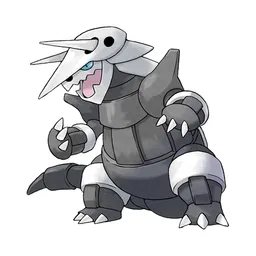
Items to rank
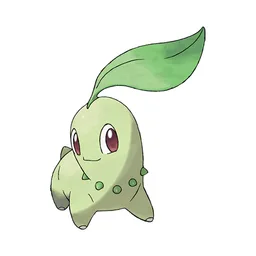
100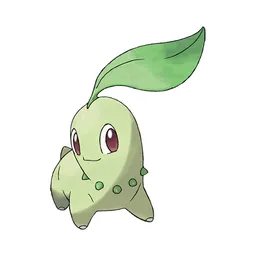 Chikorita
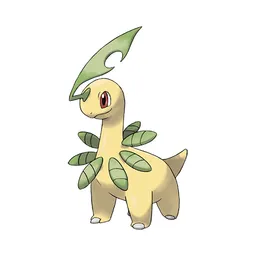 Bayleef
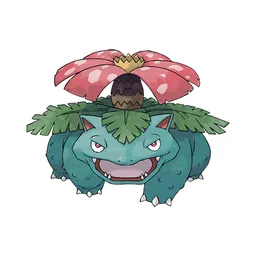
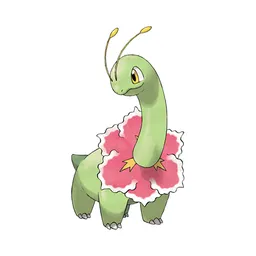 Meganium
 Cyndaquil
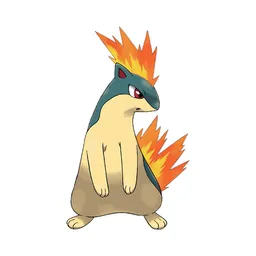 Quilava
 Typhlosion
 Totodile
 Croconaw
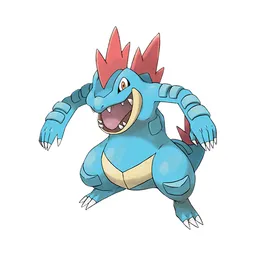 Feraligatr
 Sentret
 Furret
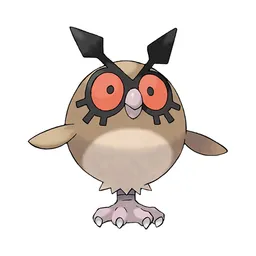 Hoothoot
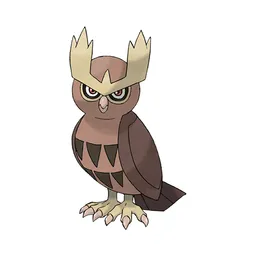 Noctowl
 Ledyba
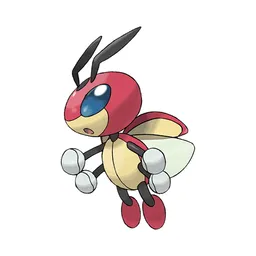 Ledian
 Spinarak
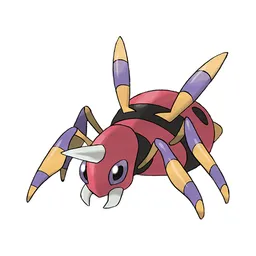 Ariados
 Crobat
 Chinchou
 Lanturn
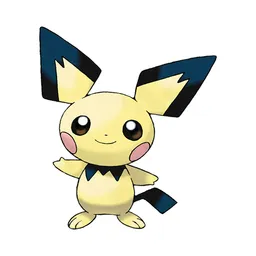 Pichu
Pichu Cleffa
 Igglybuff
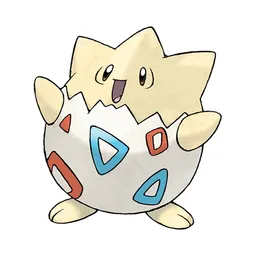 Togepi
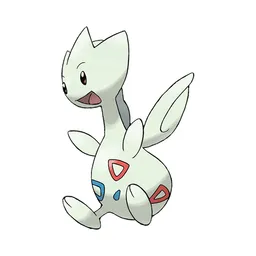 Togetic
 Natu
Natu Xatu
Xatu Mareep
 Flaaffy
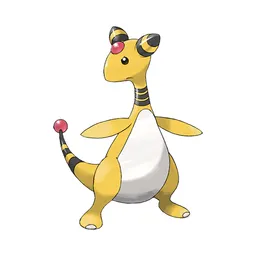 Ampharos
 Bellossom
 Marill
 Azumarill
 Sudowoodo
 Politoed
 Hoppip
 Skiploom
 Jumpluff
 Aipom
Aipom Sunkern
 Sunflora
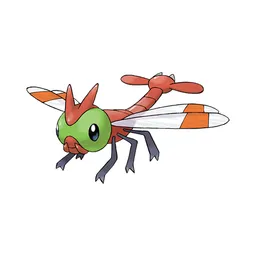 Yanma
Yanma Wooper
 Quagsire
 Espeon
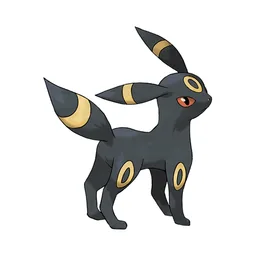
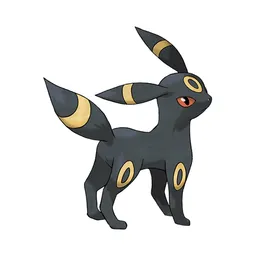 Umbreon
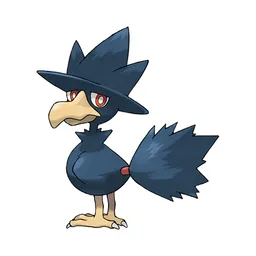 Murkrow
 Slowking
 Misdreavus
 Unown
Unown Wobbuffet
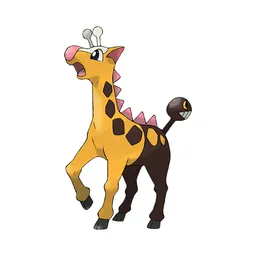 Girafarig
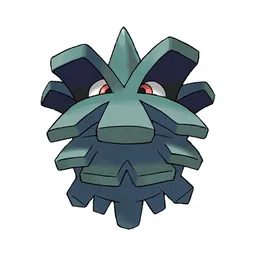 Pineco
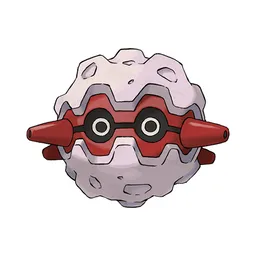 Forretress
 Dunsparce
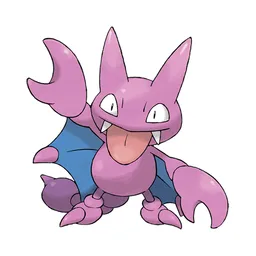 Gligar
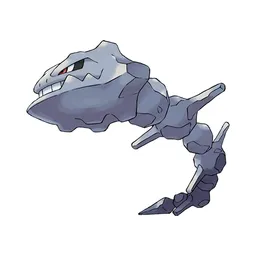 Steelix
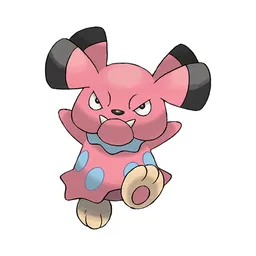 Snubbull
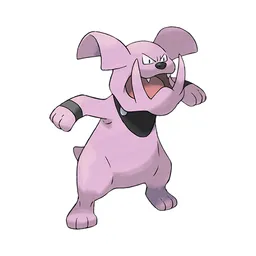 Granbull
 Qwilfish
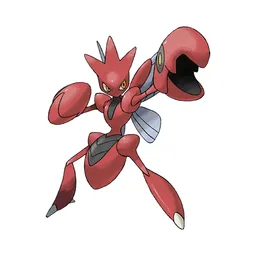 Scizor
 Shuckle
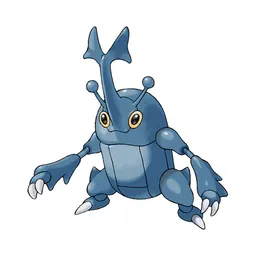 Heracross
 Sneasel
 Teddiursa
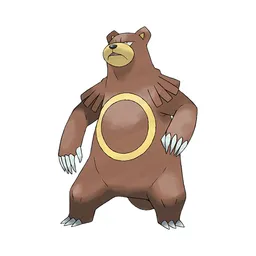 Ursaring
 Slugma
 Magcargo
 Swinub
 Piloswine
 Corsola
 Remoraid
 Octillery
 Delibird
 Mantine
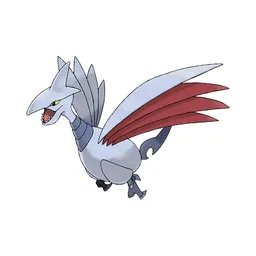 Skarmory
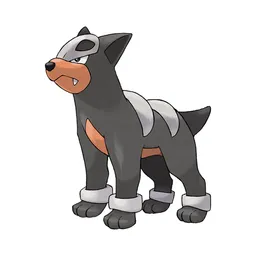 Houndour
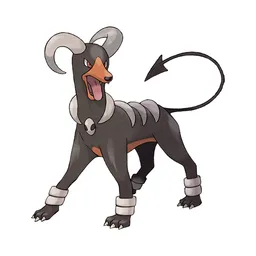 Houndoom
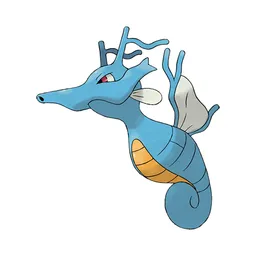 Kingdra
 Phanpy
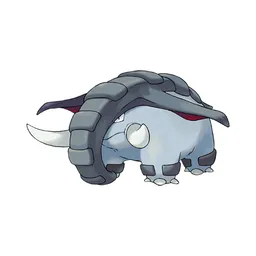 Donphan
 Porygon2
 Stantler
 Smeargle
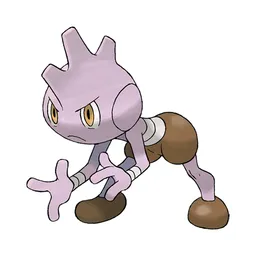 Tyrogue
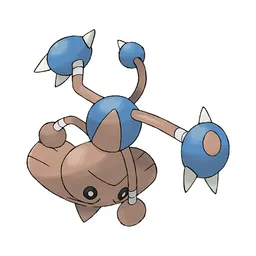 Hitmontop
 Smoochum
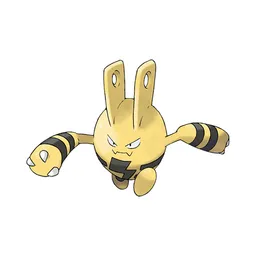 Elekid
 Magby
Magby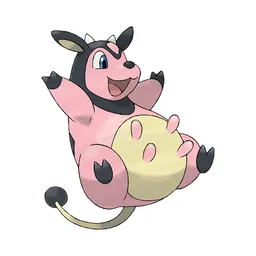 Miltank
 Blissey
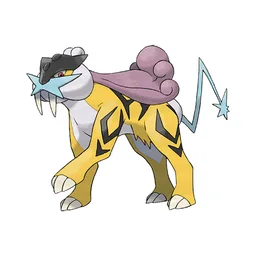
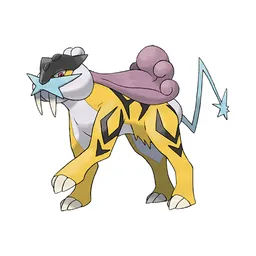 Raikou
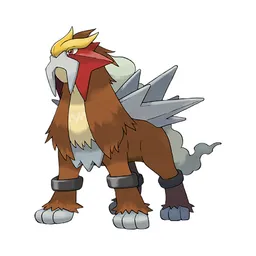 Entei
Entei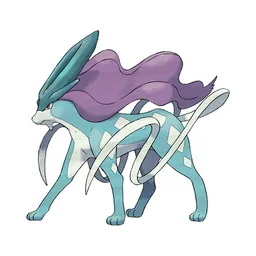 Suicune
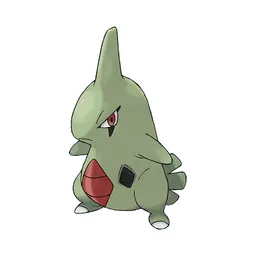 Larvitar
 Pupitar
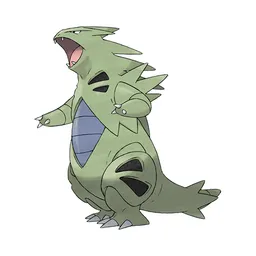 Tyranitar
 Lugia
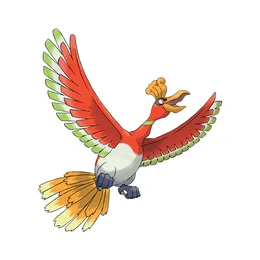
Lugia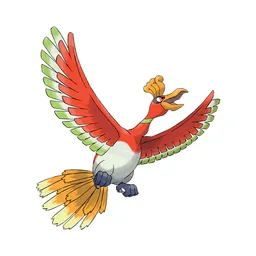 Ho Oh
Ho Oh Celebi
Drag an item into a row. On a phone, tap an item once and then tap the row you want it in. Click a tier letter to rename it, or use the colour dot to change the row colour.
Drag the 100 items below into the tiers that match how you rank them. Rename any row, change its colour, add your own pictures, then save the chart as an image.

















Common questions
Is the tier list maker really free?
Yes. This tier list maker is free and there is no paid version hiding behind a button. Create tier lists without limit, upload as many images as you want, and download every tier list without a watermark.
Do I need to make an account?
No. There is no login and no email box. Open the page, build your list, save the image and you are done.
Can I use my own images?
Yes. Press Add images and pick as many files as you like from your phone or computer. You can upload original content, paste an image straight from your clipboard with Ctrl and V, or drag image files onto the board.
Are my pictures uploaded anywhere?
No. The maker runs entirely inside your browser. Your files are read on your device and never sent to us, which is also why it keeps working when your connection drops.
Does it work on a phone?
Yes. Dragging works with touch, and if that feels fiddly you can tap an item once and then tap the row you want it in. The layout adjusts to small screens.
How do I save my tier list?
Press Save image. Your tier list is drawn to a high-resolution PNG and downloaded straight away, which is far cleaner than a screenshot and sharp enough to post or embed anywhere.
What does S tier mean?
S tier sits above A tier. The letter comes from Japanese grading, where S stands for special or superior. It is used for things that are clearly better than everything else on the list.
Can I add more than five tiers?
Yes. Press Add tier for a new row, then use the small controls beside each row to reorder it, rename any tier, change their colors or delete it. You can add or remove as many tiers as you like.
Can I share a link instead of an image?
Yes. The Share button copies a link that carries your list inside it. Anyone who opens it sees your ranking and can start editing their own copy right away.
Ready to make a tier list?
Scroll back up, add your items, drag them into tiers and download the image. No sign-up, and nothing you make is stored on our servers.